Title here
Summary here
Firmware updates add games and fix link bugs. Install the launcher’s version from the browser, install your own .uf2, or copy a file onto the board by hand.
The easiest way to update is through the launcher:
You do not download a file. The launcher writes the firmware in the browser. Firefox can show the version, but it cannot do this one-click write. Use the manual steps below.
Use this when you have your own .uf2, such as a build from
Building from Source, instead of a version the launcher already lists.
.uf2. The heading changes to Install custom firmware: and shows the file name. The button changes to Install custom firmware.Canceling the file picker returns the panel to the bundled version. If the page cannot read the file, pick another .uf2.
Firefox can select the file the same way, but it cannot write it in one click. After the file is chosen, open Flash manually instead, download it, and follow the manual steps below.
Use this if you are on Firefox, or if the one-click update stops.
gblink.uf2 from the latest
release on GitHub, or use Download firmware (.uf2) on the launcher..uf2 file onto that drive.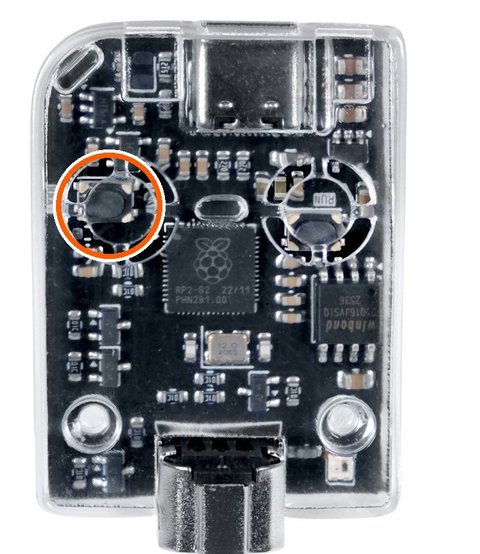
| Issue | Fix |
|---|---|
| Update stalls | Unplug, hold BOOTSEL, reconnect, and try manual flash |
| Wrong version shown | Refresh the page; reset the adapter |
| Device not recognized after flash | Try a different USB port or cable |
For technical build instructions, see Building from Source.