Title here
Summary here
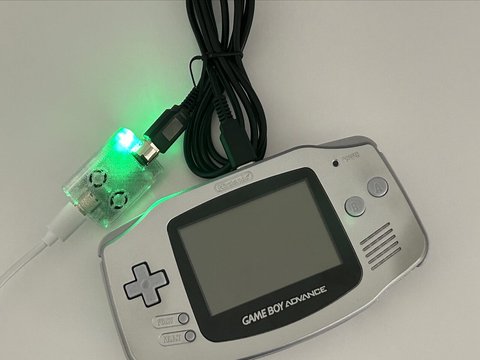
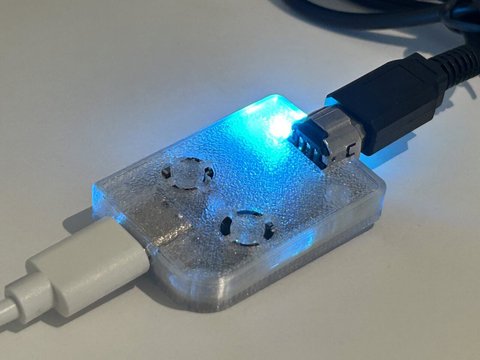
The light on the adapter is a small RGB LED. The color tells you what the adapter is doing right now. These are the defaults from the firmware README. You can change each mode’s color in the launcher.
| Color | Status |
|---|---|
| Red | Power: device is on, no data connection |
| Green | Connected: USB connected to host |
| Yellow | GBA Mode: Game Boy Advance link active |
| Blue | GB/GBC Mode: Game Boy or Game Boy Color link active |
| Purple | Printer Mode: Game Boy Printer emulation active |
| White | Advance Wars Mode: Advance Wars 1 and 2 link active |
| Light blue | e-Reader Mode: Nintendo e-Reader emulation active |
You can customize per-mode LED colors from the launcher:
| Slot | Mode |
|---|---|
| 0 | Idle |
| 1 | GBA / Celio |
| 2 | GB / GBC |
| 3 | Printer |
| 4 | Advance Wars |
| 5 | e-Reader |
Each color is red, green, and blue from 0 to 255. A higher number is also brighter.
Click Reset to defaults in the launcher. That puts every mode back to the colors in the table above.