A desktop app that talks to a real GBA through a GB-Link adapter on one side and speaks the RetroArch netplay protocol on the other. Emulator players see a normal RetroArch + gpsp peer. They need no extra software.
GB-Link USB adapter with firmware 2.2.2 or newer. Either a GBA or a GBC link cable works (the firmware detects which pin carries SD). With a GBA cable, plug the small (master) connector into the adapter
A real GBA with a Gen 3 Pokémon cartridge
RetroArch peers must run the gpsp core with Link Cable Connectivity set to Link Cable - Pokemon Gen3 mode. On Emerald / FireRed / LeafGreen, gpsp’s Automatic setting selects the Wireless Adapter instead, which is incompatible with cable play
Plug in the adapter. The Device panel shows its firmware once detected.
Join a session (direct address or lobby) or start hosting.
Both players go to the Cable Club upstairs in any Pokémon Center and talk to the attendant, in either order. If one game stops waiting before the other player arrives, talk to the attendant again.
Trade and battle as usual. Between activities the link renegotiates automatically; brief “Linking…” states are normal.
Windows and macOS need no extra driver. The firmware tells Windows to use WinUSB.
Linux: install the udev rule when the app offers it, or run ./scripts/setup-permissions.sh from the
firmware repo.
macOS first launch: the build is not notarized. Open System Settings → Privacy & Security, find the blocked-app notice, and choose Open Anyway. Use the arm64 dmg on Apple Silicon and the x64 dmg on Intel. The x64 build also runs on Apple Silicon through Rosetta.
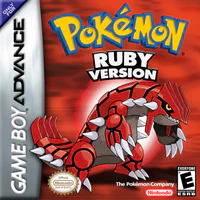 Pokémon Ruby
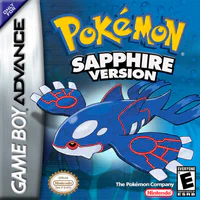 Pokémon Sapphire
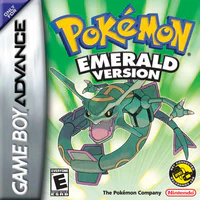 Pokémon Emerald
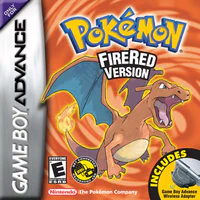 Pokémon FireRed
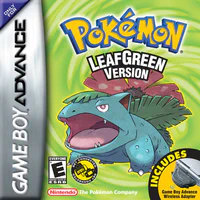 Pokémon LeafGreen