Pokémon Ruby / Sapphire (USA and Japanese): Mystery Event cards (for example Eon Ticket), Battle-e cards (Trainer and Enigma Berry), and custom / DLC cards
Pokémon Emerald (USA): Mystery Gift cards and custom / DLC cards
Super Mario Advance 4 (USA and Japanese): Demo, Power-Up, and Level cards. Custom levels come from the
SMA4 Level Editor
This project does not host or link to card files. Cards are .bin, .raw, or .sav. Pokémon Ruby / Sapphire DLC content is collected in
notblisy/RUBYSAPPHIREDLC.
Beat Norman, then talk to the person by the PC in the Petalburg City Pokémon Center and enter the phrase MYSTERY EVENT IS EXCITING. Save and reboot; Mystery Event now appears on the main menu. Select it, connect the adapter, send the card, then press A on the GBA when prompted.
Beat Norman, then talk to the person by the PC in the Petalburg City Pokémon Center and enter the phrase LINK TOGETHER WITH ALL. Save and reboot; Mystery Gift now appears on the main menu. Select it, connect the adapter, send the card, then press A on the GBA when prompted.
Demo / Power-Up: On any world map, press R for the card-scan menu, choose Demo Card or Power-Up Card, then connect in the client. When prompted, click OK on the GBA to start the scan.
Level: From File Select, scroll to the bottom and choose Level Card to warp to World-e. Walk to the glowing Level Scan Portal and press A. After Lakitu appears, connect in the client and click OK on the GBA when prompted.
Custom levels are made in the
SMA4 Level Editor. You can also open one from
popular levels. Download the level from the editor. That download is a .sav file. Drop it on the e-Reader page with Super Mario Advance 4 selected, then scan it as a Level Card.
These e-Reader titles cannot be used with GB-Link e-Reader:
Animal Crossing-e cards (GBA to GameCube)
Pokémon-e Trading Card Game, NES-e, Mario Party-e, Pokémon Channel
Other e-Reader-only games: Kirby, Air Hockey-e, and Ice Climber-e
Other Japan-only e-Reader titles: Pokémon FireRed and LeafGreen e-Reader data, Pokémon Pinball: Ruby & Sapphire, Mega Man Zero 3, Mario vs. Donkey Kong, Pikmin 2-e, and Donkey Kong-e
 Pokémon Ruby
 Pokémon Sapphire
 Pokémon Emerald
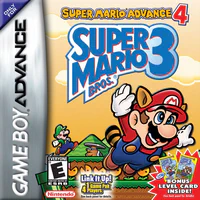 Super Mario Advance 4